For Google Smart GPS Tracker Work With Android Google's Find Hub App Locator Keys Elderly Pet Finder for Samsung XIAOMI Phones


For Google Smart GPS Tracker Work With Android Google's Find Hub App Locator Keys Elderly Pet Finder for Samsung XIAOMI Phones
SPECIFICATIONS
APP: Google's Find Hub App
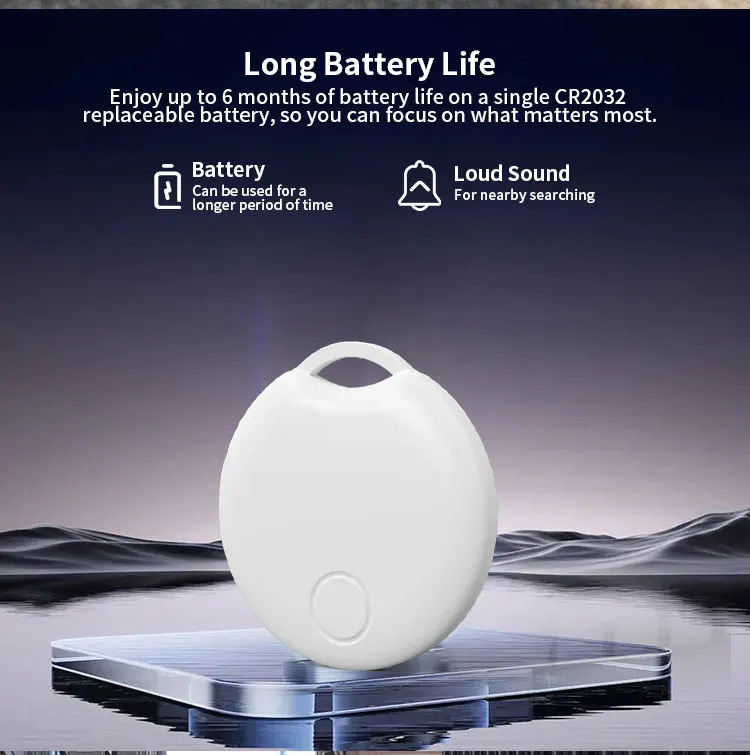
Battery in: CR2032
Brand Name: HaveDeer
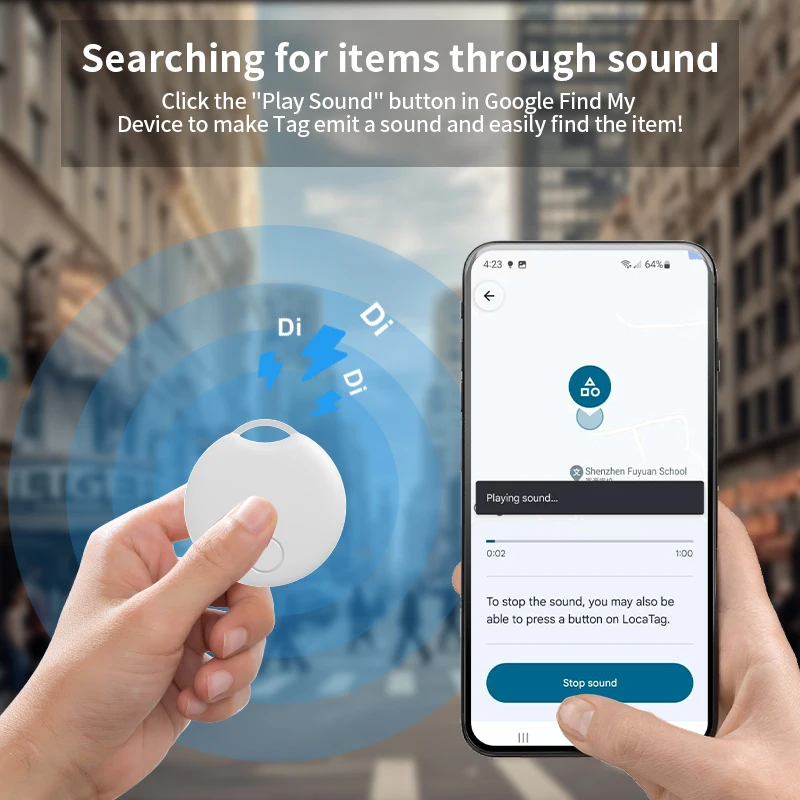
Buzzer: Built-in 75 db(at 10cm)
Certification: CE,FCC,RoHS
Choice: yes
Country / Region has services Restricted by Google LCC can not use the tracker: Such as Russia ,China ,North Korea, Iran ,Cuba ,Crimea ,Syria , Central Asian countries ,Pakistan ,and so on
High-concerned chemical: None
Origin: Mainland China
Product name: smart tracker for Android
Range: Other
Size: 38.6x40.0x7.3mm/1.52x1.57x0.29inch
Usage demand: Android devices with Android 9.0 at least and Google Find My app
Weight: 8g / 0.28 oz
Working humidity: 95%(no condensation)
Working temperature: -5°C to 45°C(23°F to 113°F)
waterproof: No
Product functions:
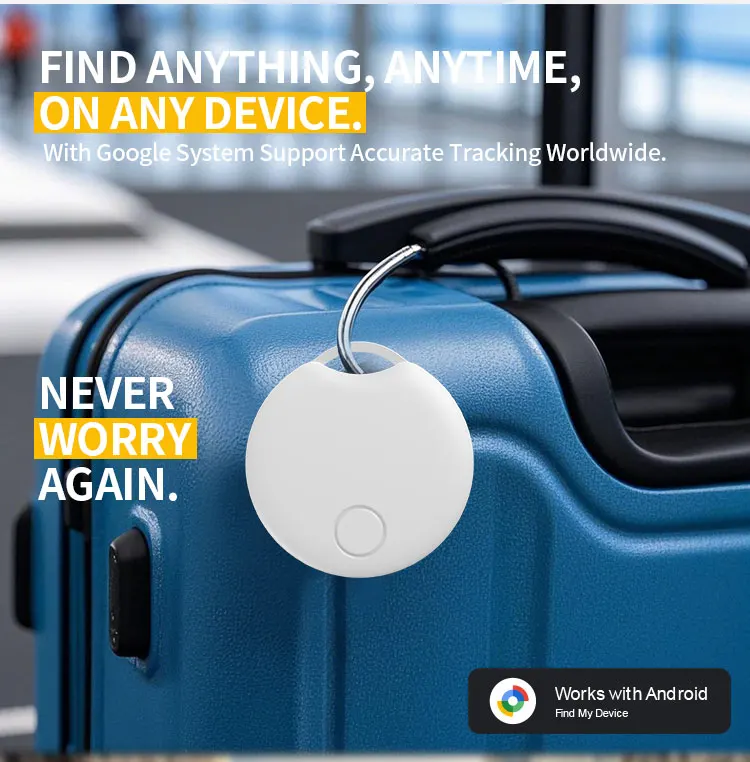
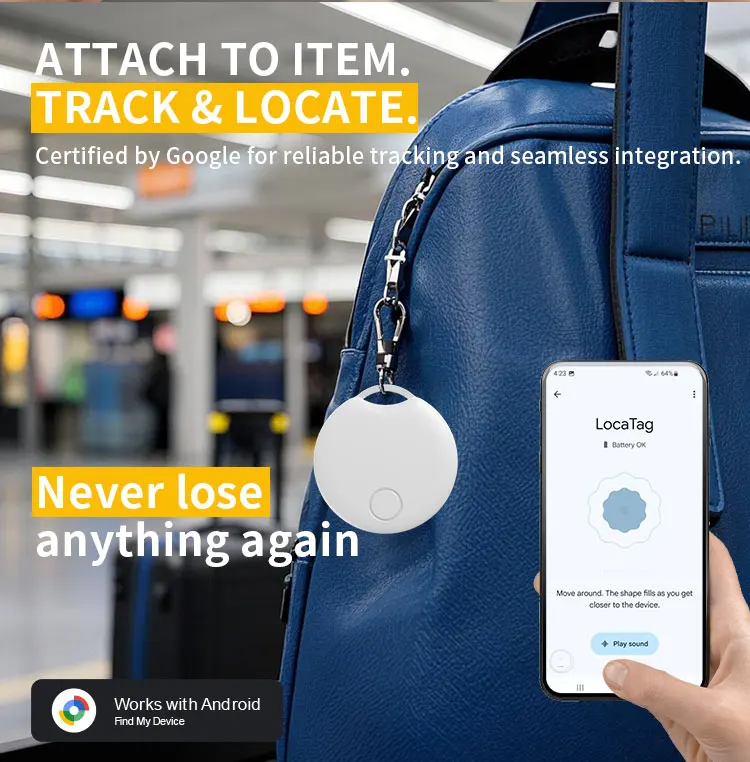
Google Certified Product – Officially certified by Google for quality and reliability.
Quick Locating with Sound – Plays a sound to help you find items faster.
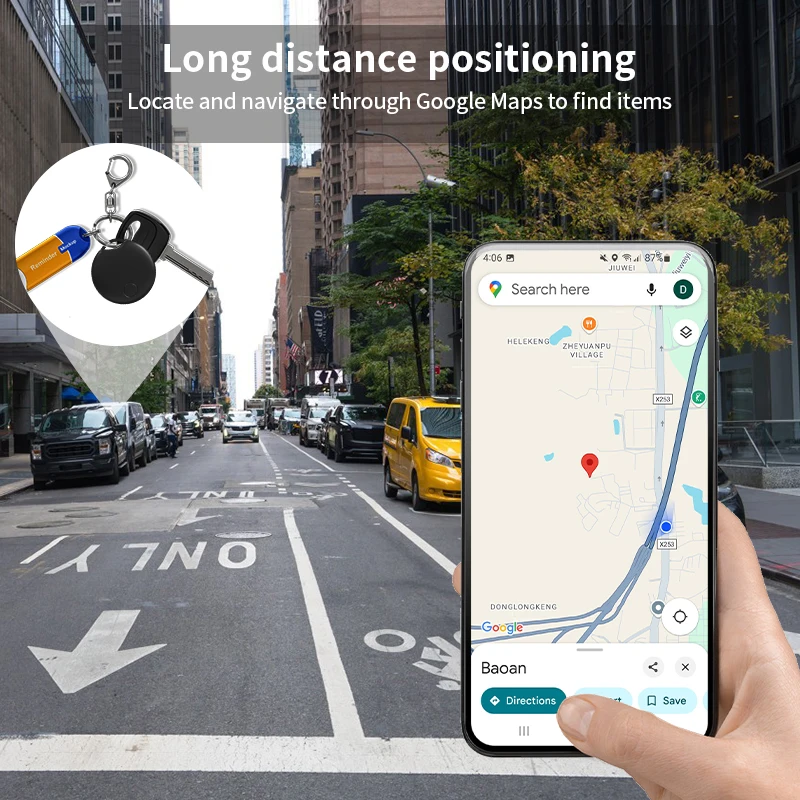
Long-Distance Tracking – Supports finding objects even from a distance.
Voice Command Display – Shows voice commands on your phone for easy operation.
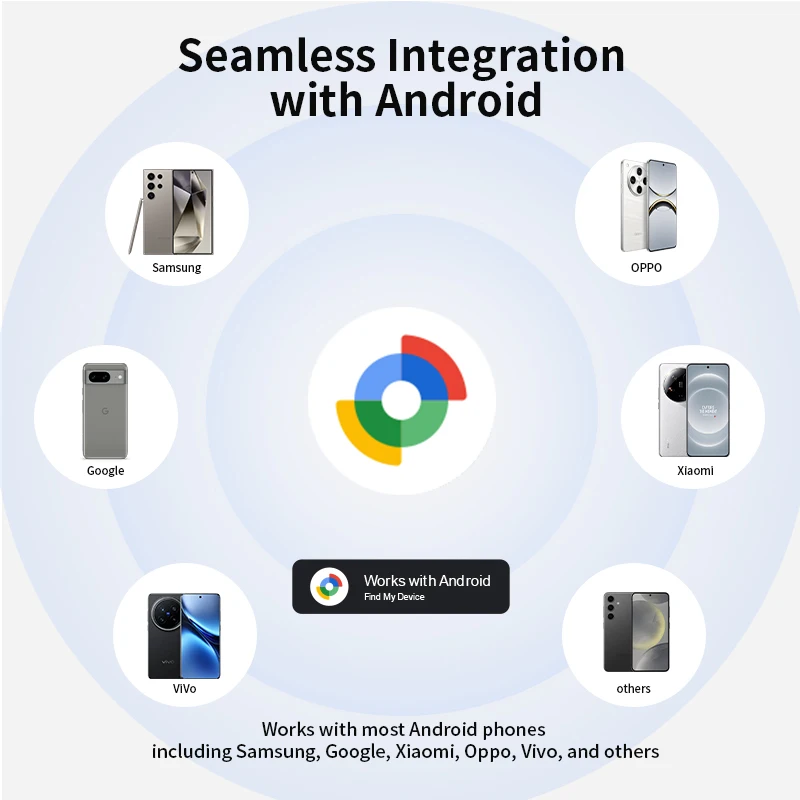
Wide Compatibility – Works with most Android phones, such as Xiaomi and Samsung.
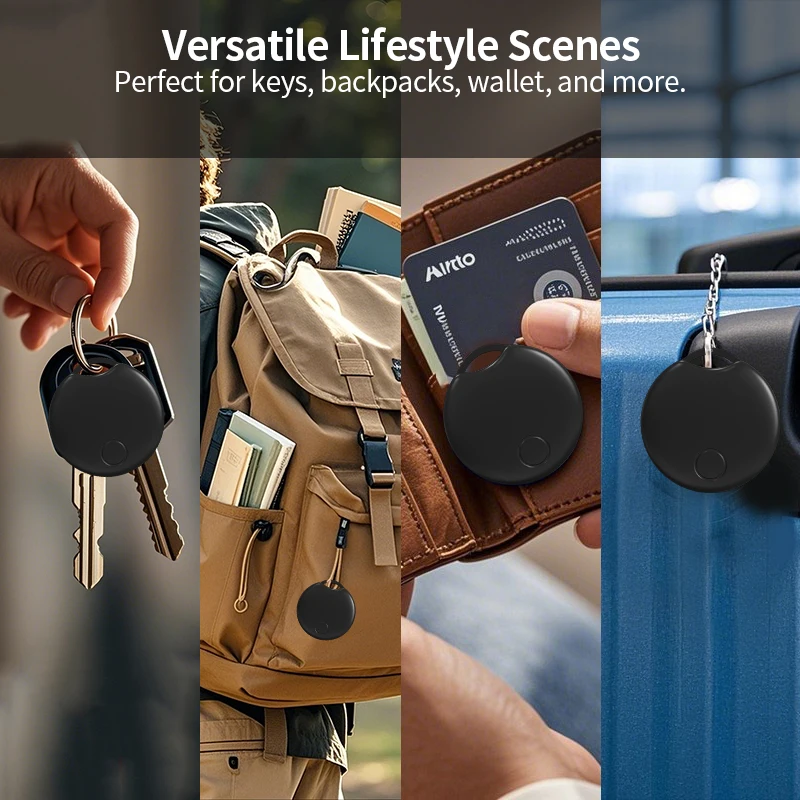
Lightweight & Versatile – Compact and easy to carry, designed for everyday use
Device Sharing Supported –Information can be Shared to 5 people and collaborate seamlessly.
For certain Samsung models, there are connectivity issues. Please check the following points:
Three Core Permission Fixes (Samsung Galaxy Owners Must)
1. Activate Google Bluetooth scanning module in Galaxy Settings (core requirement);
2.Check device and sharing permissions for Google services;
3.Access Google Play Services, find the Nearby devices permission and set it to Allowed.